 DogByte by KalisPro
Stream schedule synced to Twitch
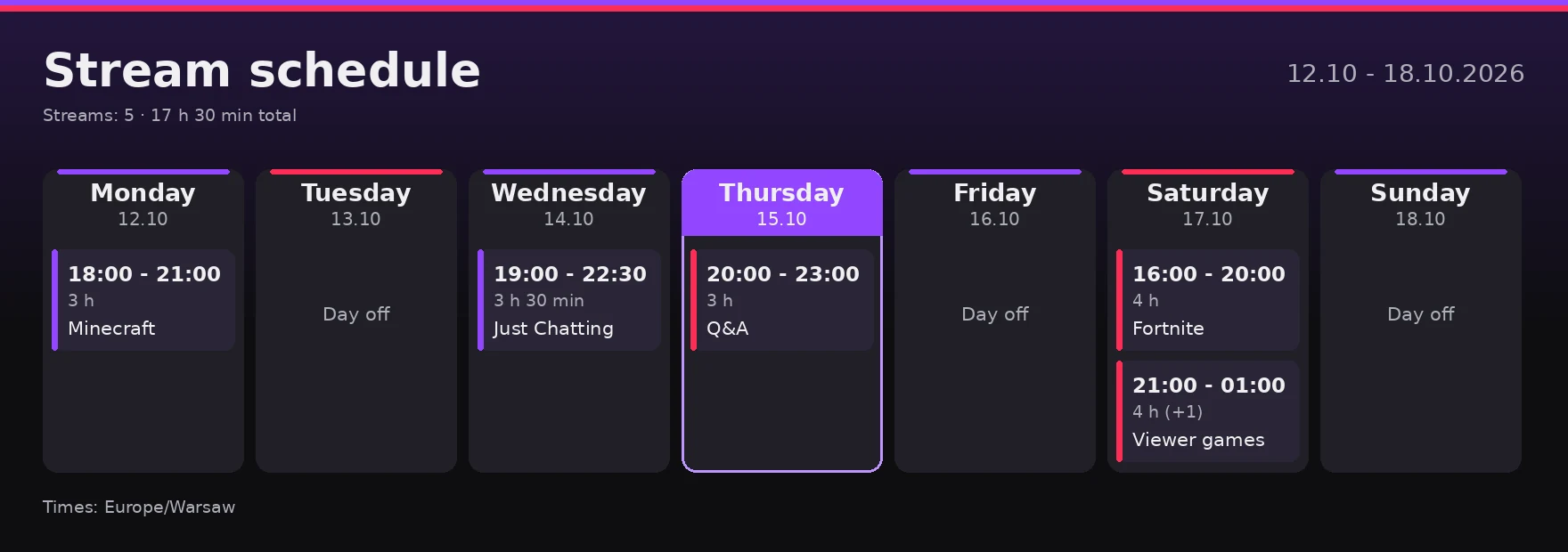
You already plan your week in DogByte for Discord. Connect your Twitch channel and every stream you add, change or delete there also lands in the schedule on your Twitch channel page. You no longer type the same plan in two places.

What you need
- DogByte on your server with a weekly schedule,
- access to the Twitch account of the channel (Twitch asks you to log in and agree).
Step by step
- Open the dashboard. Log in at panel.kalispro.uk, pick your server and go to Weekly schedule.
- Connect Twitch. In the Twitch schedule card click Connect Twitch. Twitch only asks for permission to manage the channel schedule, nothing else.
- Done. DogByte sends your current plan right away. From now on every stream added in the dashboard or with
/schedule addgoes to Twitch too, and so do changes and deletions.
What syncs and what does not
- Start, end and title of each stream go to Twitch as schedule segments.
- DogByte only touches the entries it created. Anything you added by hand on Twitch stays as it is.
- Sync now sends the plan again, for example after you fixed something on Twitch.
- Disconnect stops the sync. Entries already on Twitch stay there.
What about Kick?
Kick has a schedule on the channel (kick.com/name/schedule), but it does not let apps change it yet. The Kick schedule card in the dashboard will get the same Connect button once Kick adds it to its API.

Common problems
“Twitch did not accept the last change”
The reason is shown in the card. Most often the access was revoked or the Twitch password changed. Click Reconnect.
Times on Twitch are off by an hour
Check the time zone of the schedule: /schedule timezone. Twitch gets the exact time, so the zone in DogByte must match yours.