 DogByte by KalisPro
Stream schedule on Discord
DogByte draws your weekly stream plan as a graphic, posts it in a channel and updates it every day. It can also remind viewers before you go live.
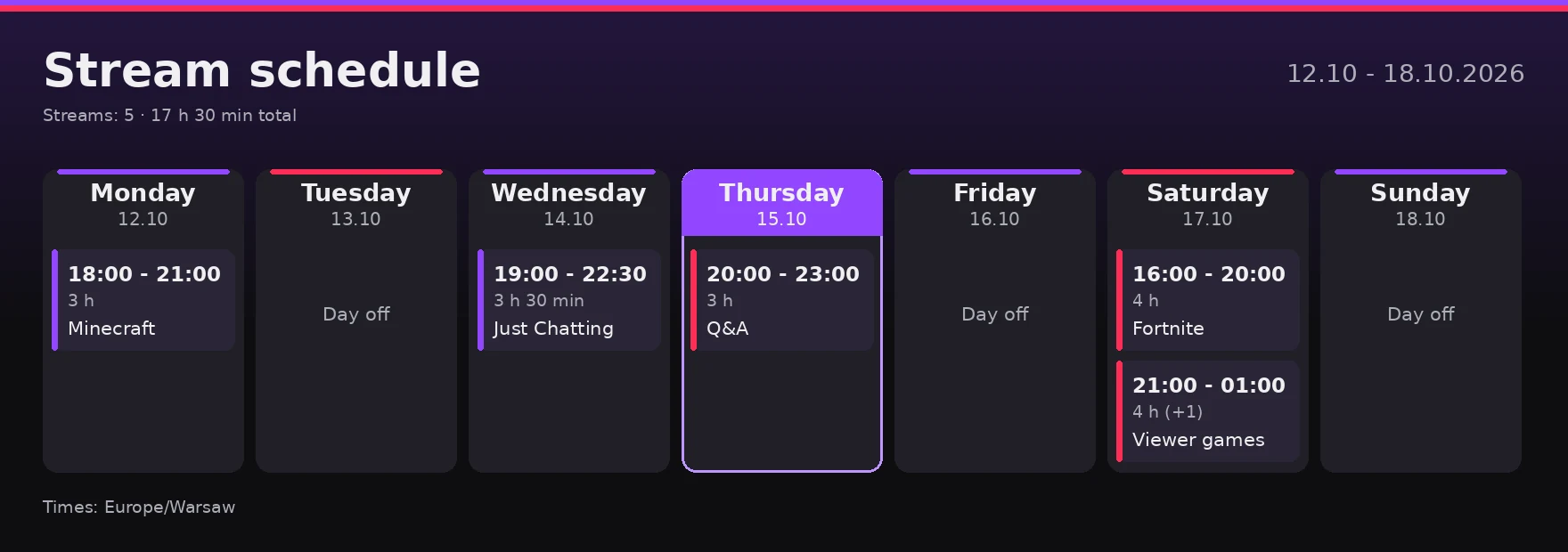
Step by step
- Set the time zone (once per server):
/schedule timezone zone:Europe/London - Add streams. Give a start and end time, a day and an optional title:
You can plan this week and up to three weeks ahead with/schedule add start:18:00 end:21:00 day:Monday title:Minecraftweek, or give an exact date. - Post the plan.
The bot posts the graphic and refreshes it every day, so the message always shows the current week./schedule post channel:#schedule - Reminder with a ping (optional). Add
ping_role:@Liveand choose inping_beforewhen it goes out, from the start time up to 6 hours before.
Changing the plan
/schedule editfixes the day, times or title,/schedule removedeletes one stream or clears the whole plan,/schedule copycopies a week to the next one if you stream on fixed days,/schedule showshows the graphic only to you, as a preview.
Weekly and monthly summaries
DogByte collects data from your Twitch, TikTok and Kick streams and once a week (and once a month if you like) posts a graphic with the number of streams, total hours, the longest stream, viewers per platform and your most played games.
/summary setup channel:#stats weekly:True monthly:True/summary show previews any period without posting it.