 DogByte by KalisPro
Chat bot for Twitch and Kick
DogByte has a chat bot that looks after your Twitch and Kick chat: it removes spam, punishes banned words, answers commands and reminds people about your Discord. It posts from its own account KalisProUK, and you set it up in the same dashboard as your Discord alerts.
What you need
- DogByte on your Discord server and the Manage Server permission,
- the Twitch or Kick account you stream from.
Step by step
- Open the section. Log in at panel.kalispro.uk, pick your server and go to Chat bot (Twitch, Kick). On a new server the module is off: click the switch at the top of the page.
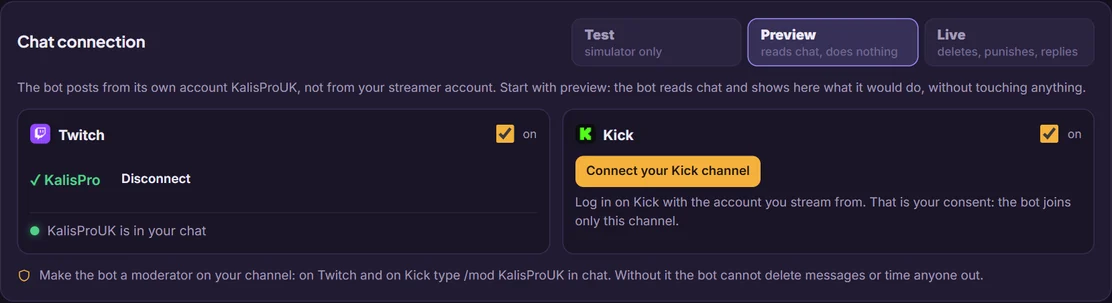
- Connect your channel. In the Chat connection card click Connect your Twitch channel (or Kick) and log in with the account you stream from. That is your consent: the bot joins only this one channel. The login only proves the channel is yours.
- Make the bot a moderator. Type
/mod KalisProUKin your chat. Without it the bot can read chat but cannot delete messages or time anyone out. It works the same on Twitch and on Kick. - Start with a preview. Pick Preview mode and save. The bot reads chat and shows in the dashboard what it would do, but it deletes nothing and posts nothing.
- Go live. When the decisions in the preview look right, switch to Live and save. From now on the bot deletes, punishes and replies.
Three modes
- Test: the bot does not connect to chat. Set everything up and try it in the simulator.
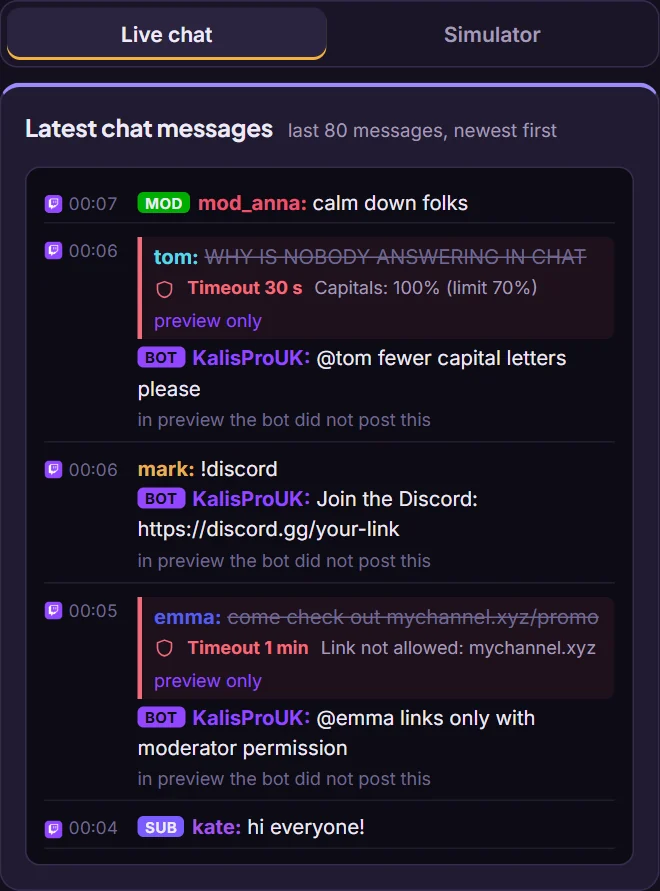
- Preview: the bot reads chat but touches nothing. The Live chat column shows the last 80 messages, with each decision marked “preview only”.
- Live: the bot does its job for real.
Each platform also has its own on switch, so you can keep the bot on Twitch only, for example.
A connected Kick channel also gives LiveEcho follow alerts with usernames, even in Test mode.
The chat simulator
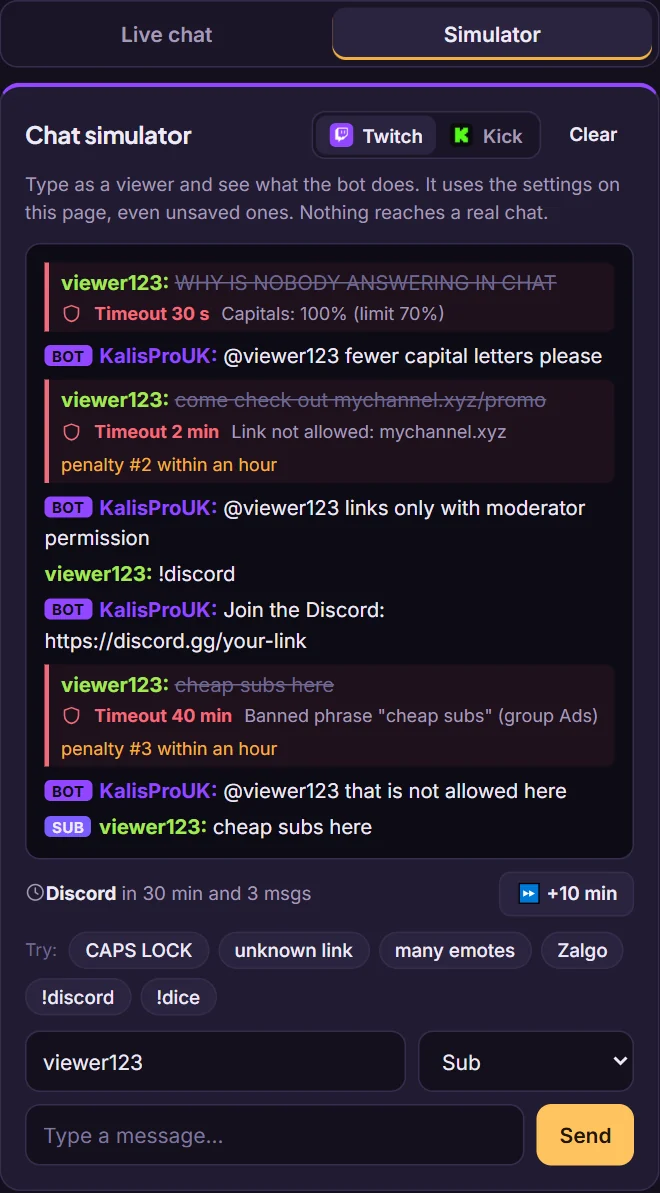
On the right you switch between Live chat and Simulator. In the simulator you type as a viewer, pick who you are (viewer, sub, VIP, moderator or channel owner) and see the penalty, the reason and the bot's reply at once. It uses the settings on the page, even unsaved ones, and nothing reaches a real chat. +10 min moves the clock forward so you can check your timers.
How to tell it works
- Once everything is connected, the Chat connection card folds into one bar with the state of both chats. Details opens it again.
- The dot next to Chat bot in the menu is empty when the module is off or in Test mode, yellow when something needs doing, and green when the bot is in your chat.

Common problems
“The bot is waiting to be added”
The bot is not a moderator yet. Type /mod KalisProUK in your chat and wait a moment.
“Another of your servers already uses this channel”
One channel can have the chat bot on one server only. Disconnect it on the other server first.
How to disconnect a channel
Click Disconnect next to the channel name. The bot leaves the chat right away.