 DogByte by KalisPro
DogByte and LiveEcho together
LiveEcho reads your chat on your PC, and DogByte runs your Discord. Connect them with one code and they help each other: after the stream a recap with messages, follows and gifts lands on Discord, live alerts go out right away, and the end credits show your next stream.
What the connection gives you
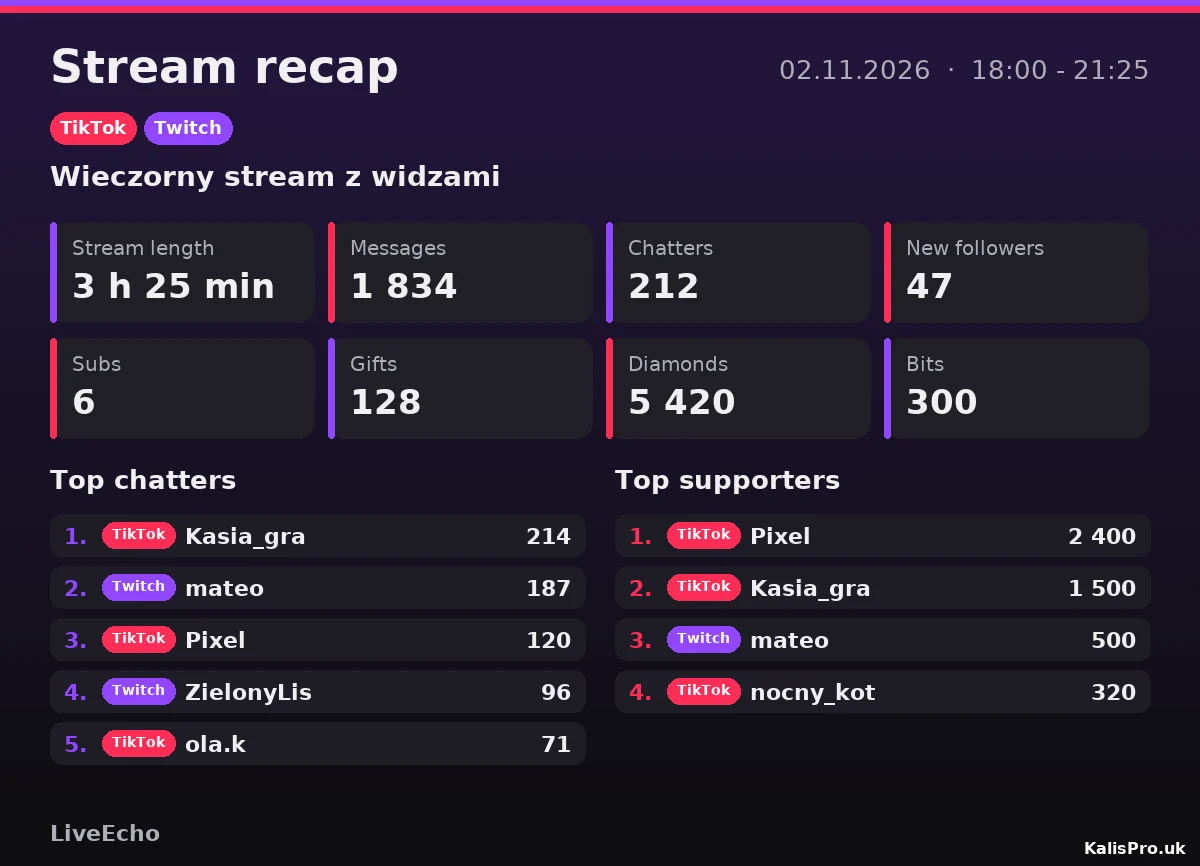
- A stream recap on Discord. After the end credits LiveEcho sends what happened in chat, and DogByte draws a graphic: stream time, messages, people in chat, peak viewers, new follows, subs, gifts and the most active people.
- Faster live alerts. When LiveEcho connects to your live, DogByte checks the platform at once and posts the alert, instead of waiting for its next check.
- Your next stream in the credits. The LiveEcho end credits show the next stream from your DogByte weekly schedule.
- Kick follows with usernames. Kick chat does not report follows. If your Kick channel is connected in the Chat bot section, DogByte passes every new follower to LiveEcho for alerts and the credits.
Step by step
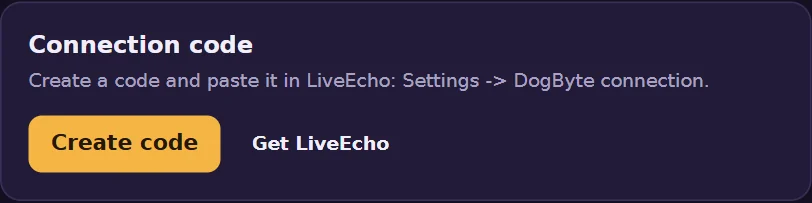
- Create a code. In the dashboard open the LiveEcho section and click Create code in the Connection code card. Copy it: it is shown only once.
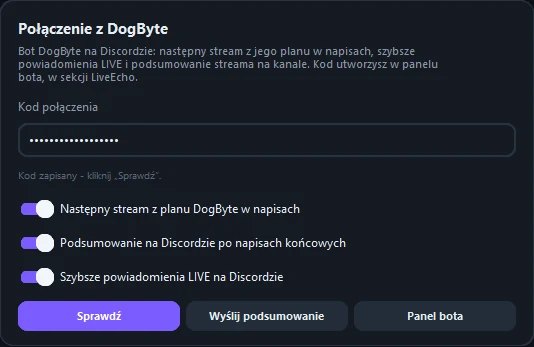
- Paste it in LiveEcho. In LiveEcho go to Settings, find the DogByte connection card, paste the code and click Check.
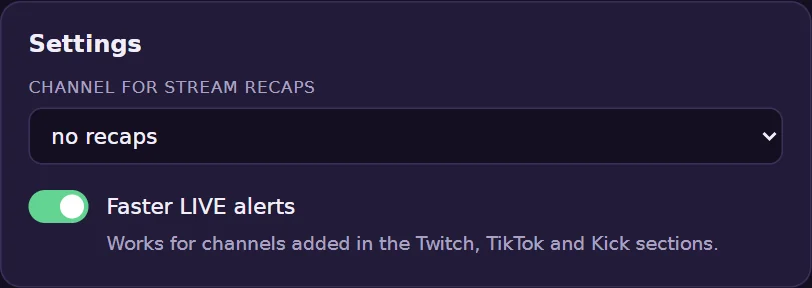
- Pick a recap channel. Back in the dashboard, in Settings, choose the Channel for stream recaps. Faster LIVE alerts is on by default.
Who can see the code
The code only lets LiveEcho talk to this one server: read the next stream, report that you went live, send a recap and get Kick follows. It cannot change settings. If it leaks, click New code and the old one stops working. Disconnect cuts LiveEcho off completely.
Common problems
No live alert after LiveEcho connected
Faster alerts work only for channels added in the Twitch, TikTok and Kick sections. DogByte still checks the platform itself, so it posts nothing if the stream is not visible there yet.
The recap did not show up
Check that a recap channel is picked and that the switch in LiveEcho is on. A recap goes out at most once every 10 minutes, so a quick restart of the stream does not post a second one.