 DogByte by KalisPro
Chat commands and timers on Twitch and Kick
Viewers keep asking about your Discord or the game? Add a command and the bot answers for you. Timers remind chat about important things by themselves, but only when chat is actually moving.
This guide assumes the bot is already connected to your channel (see Chat bot for Twitch and Kick).
Commands
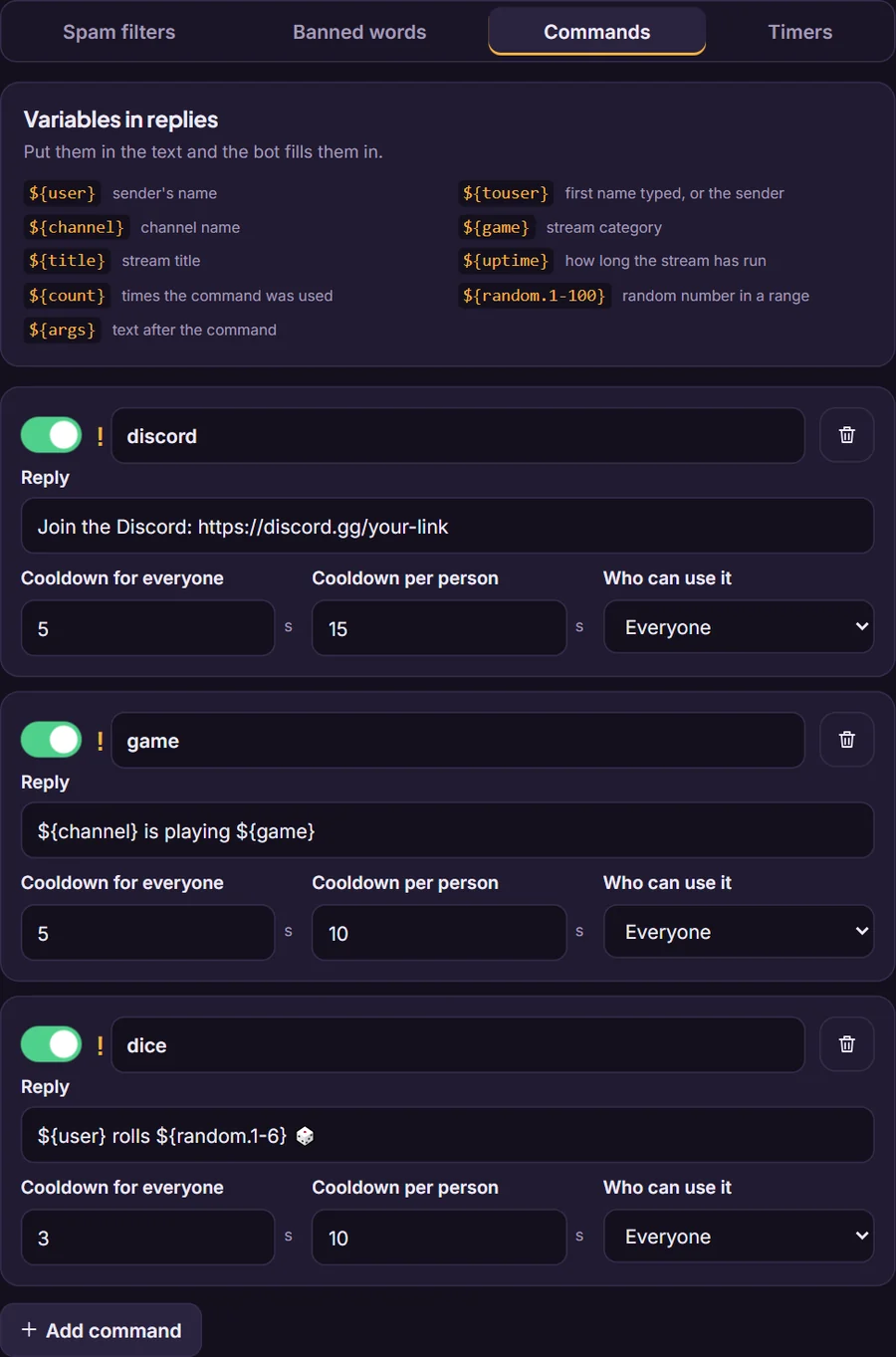
- Open the Commands tab in the Chat bot section. There are examples to start with:
!discord,!gameand!dice. - Add a command. Click Add command, type the name without the exclamation mark and the Reply.
- Set the cooldowns. Cooldown for everyone is how many seconds the command waits after it is used. Cooldown per person stops one viewer from spamming it.
- Choose who can use it: everyone, subs and up, VIPs and up, moderators or only you.
- Save and try the command in the simulator.
You can have up to 50 commands, and each has its own on/off switch.
Variables in replies
${user}: the sender's name,${touser}: the first name typed after the command, or the sender,${channel}: the channel name,${game}and${title}: the stream category and title,${uptime}: how long the stream has run,${count}: how many times the command was used,${random.1-100}: a random number in a range,${args}: the text after the command.
For example ${user} rolls ${random.1-6} 🎲 becomes “viewer123 rolls 4 🎲”.
Timers
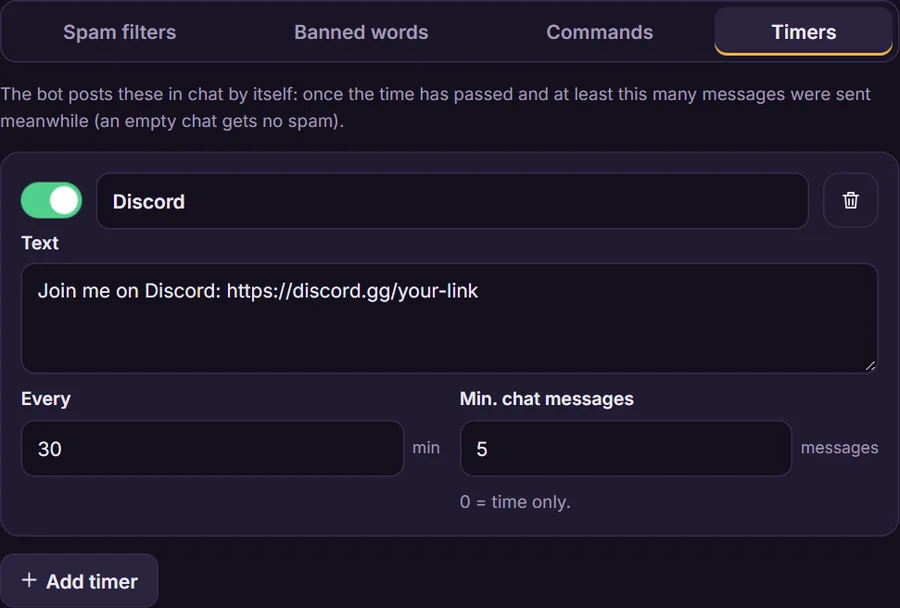
A timer is a message the bot posts in chat by itself. It goes out when the set time has passed (Every) and at least as many chat messages were sent meanwhile as you set in Min. chat messages. That way an empty chat gets no spam. 0 means time only. You can have up to 10 timers.
In the simulator +10 min moves the clock forward, and below the chat you see when each timer will post next.
Common problems
A command does not reply
Check its switch, the cooldowns and who can use it. The simulator shows the reason, for example “cooldown, 3 s left”. In a real chat the bot only replies in Live mode.
A timer stays silent
Chat needs enough messages first. Set Min. chat messages to 0 if it should post on time alone.